
Smart Printer Setup & Troubleshooting
Get your printer ready in minutes.
Follow our step-by-step guidance for easy printer setup and installation, wireless connections, official driver downloads, and troubleshooting common printing issues across major printer brands and operating systems.


Quick & Easy 123 Printer Setup & Install Guide
Get your printer ready in minutes with our easy-to-follow instructions. Whether setting up a new device or reconnecting an existing one, this guide will help you configure, connect, and test your printer with confidence.

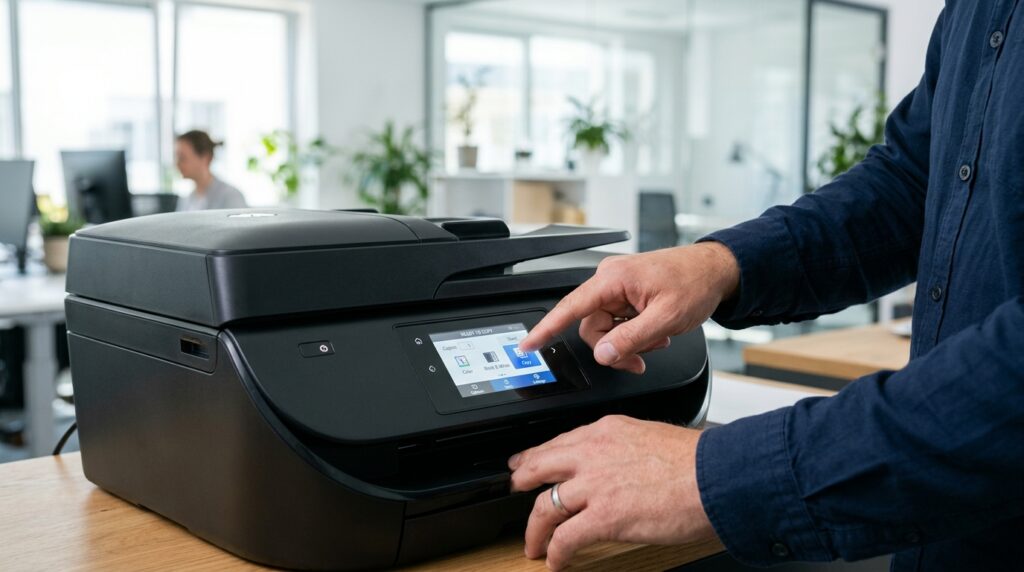
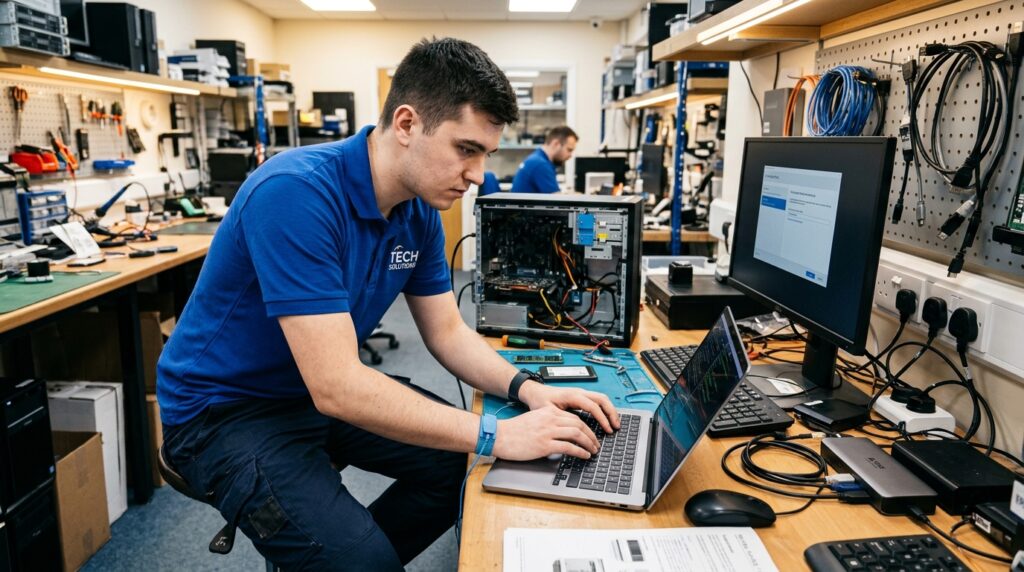
Download the Latest Software
Get the newest drivers and printer software optimized for compatibility with your system.
Connect Your Printer
Establish a connection using a USB cable or set up wireless access through the printer’s Wi-Fi setup options.
Install the Printer Drivers
Proceed with the on-screen instructions to finalize the installation and complete the setup process.
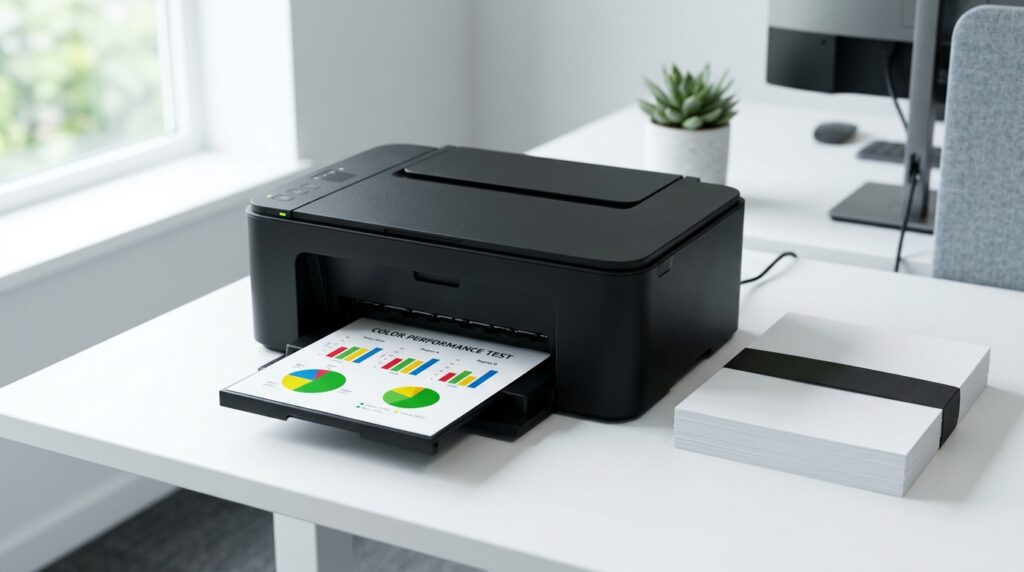
Test the Printer
After installation, print a test page to verify that your printer is functioning correctly.
Complete Printer Setup Guide
Follow our step-by-step guide to unbox your printer, install cartridges, load paper, connect to Wi-Fi or USB, install drivers, and print your first test page.
Unbox Your Printer Carefully
- Remove all outer packaging, protective tapes, foam spacers, and plastic shipping films from the exterior and inside the access doors.
- Check the included accessories: power cable, starter ink or toner cartridges, USB cable (if provided), setup documentation, and starter paper (if included).
Pro tip: Keep the packaging for at least 7 days in case of a return or exchange.
Install Ink or Toner Cartridges
- Open the cartridge access area or top scanner assembly to access the carriage or toner bay.
- Remove all protective seals, orange plastic clips, and packaging from the new cartridges.
- Install cartridges firmly into the correct color-coded slots until they click securely into place.
- Close the cartridge access cover completely.
Pro tip: Avoid touching the copper or gold contacts on cartridges to prevent electrical connection issues and printhead errors.
Load Paper Into the Input Tray
- Open the input tray or rear sheet feeder on your printer.
- Adjust the paper width and length guides outward.
- Load plain Letter-size or A4 paper into the tray.
- Ensure the paper stack is flat and properly aligned against the tray edges without being bent by the guides.
Pro tip: Fan the paper stack lightly before loading to help prevent multi-sheet feeding and paper jams.
Power On the Printer
- Connect the power cable securely to the printer and plug it into a suitable electrical wall outlet.
- Press the Power button on the device.
- Allow the initial startup routine and hardware self-alignment process to finish.
Pro tip: Some printers automatically print an alignment page upon first startup; follow on-screen instructions to scan the sheet if prompted.
Connect Your Printer
Choose the connection method that best suits your printer and setup.
Wi-Fi Connection
Open your printer’s wireless settings, select your Wi-Fi network, enter the password, and wait for connection confirmation.
USB Connection
Connect the printer directly to your computer using a compatible USB cable (Type-B to standard USB-A or USB-C).
Ethernet Connection
Connect the printer to your router using an Ethernet cable for a fast and stable wired network connection.
Important note: For network printing, your computer or phone and printer generally need to be connected to the same network.
Install Printer Drivers and Software
- Automatic Driver Installation: Both Windows and macOS support automatic plug-and-play driver installation for many standard printers.
- Official Website Downloads: Download the latest driver package and full-featured software suite directly from the official website of the printer manufacturer.
- Utilities & Tools: Install scanner utilities, wireless setup tools, and device firmware updates where available to maintain stability.
Pro tip: Choose software compatible with the operating system and printer model to ensure error-free operation.
Add the Printer to Your Computer
Windows
Settings → Bluetooth & devices → Printers & scanners → Add device.
Menu wording may vary by Windows version.
Mac
System Settings → Printers & Scanners → Add Printer.
Follow the on-screen instructions to complete device pairing and driver assignment.
Print a Test Page
- Open your computer’s printer settings dialog.
- Select the available test-print option to produce a sample page.
- Check text clarity, color accuracy, streaks, smudges, and paper alignment across the printed output.
If problems occur: Check the driver, paper loading, ink or toner levels, and printhead condition.
Set Up Mobile Printing
- iPhone and iPad: Print directly using Apple AirPrint where supported by tapping the Share icon on any document or photo.
- Android: Install compatible printer manufacturer companion apps or print service plugins from Google Play.
- Mobile Capabilities: Easily print documents and photos, trigger scanning where supported, and check ink or toner supply levels where available.
Note: Not every printer supports every mobile printing feature; capabilities vary by printer model and manufacturer.
Troubleshoot Common Setup Issues
Resolve frequent setup bottlenecks with these three compact troubleshooting checkpoints:
Wi-Fi Not Connecting?
Check the password, restart the printer and router, and improve the printer’s proximity to the router.
Printer Showing Offline?
Check power and connectivity, review printer status in settings, and verify the selected default printer if applicable.
Print Quality Issues?
Check ink or toner supply, verify paper quality, run printhead cleaning options, and verify proper cartridge installation.
Important note: Exact setup steps, menus, cartridges, drivers, and connection methods can vary depending on your specific printer model and operating system. Always refer to your manufacturer’s documentation for model-specific requirements.
Still Having Printer Problems? Let’s Get It Working.
Can’t get your printer working? Get guidance with printer setup, connection issues, driver installation, and common printing errors. Find the next steps to get back to printing.